- Overview
- Configuration
- NTP4 Plug-In
- Hardware
- RFC 868
- RFC 2030
-
RFC 1305
- RFC 1305
- 1. Introduction
- 1.1 Related Technology
- 2. System Architecture
- 2.1 Implementation Model
- 2.2 Network Configurations
- 3. Network Time Protocol
- 3.1 Data Formats
- 3.2 State Variables and Parameters
- 3.2.1 Common Variables
- 3.2.2 System Variables
- 3.2.3 Peer Variables
- 3.2.4 Packet Variables
- 3.2.5 Clock-Filter Variables
- 3.2.6 Authentication Variables
- 3.2.7 Parameters
- 3.3 Modes of Operation
- 3.4 Event Processing
- 3.4.1 Notation Conventions
- 3.4.2 Transmit Procedure
- 3.4.3 Receive Procedure
- 3.4.4 Packet Procedure
- 3.4.5 Clock-Update Procedure
- 3.4.6 Primary-Clock Procedure
- 3.4.7 Initialization Procedures
- 3.4.7.1 Initialization Procedure
- 3.4.7.2 Initialization-Instantiation Procedure
- 3.4.7.3 Receive-Instantiation Procedure
- 3.4.7.4 Primary Clock-Instantiation Procedure
- 3.4.8 Clear Procedure
- 3.4.9 Poll-Update Procedure
- 3.5 Synchronization Distance Procedure
- 3.6 Access Control Issues
- 4. Filtering and Selection Algorithms
- 4.1 Clock-Filter Procedure
- 4.2 Clock-Selection Procedure
- 4.2.1 Intersection Algorithm
- 4.2.2. Clustering Algorithm
- 5. Local Clocks
- 5.1 Fuzzball Implementation
- 5.2 Gradual Phase Adjustments
- 5.3 Step Phase Adjustments
- 5.4 Implementation Issues
- 6. Acknowledgments
- 7. References
- Appendix A
- Appendix B
- Appendix C
- Appendix D
- Appendix E
- Appendix F
- Appendix G
- Appendix H
- Appendix I
- Time Tools
- NTP Auditor
- About
| Previous Top Next |
Windows Time Server
Settings Tab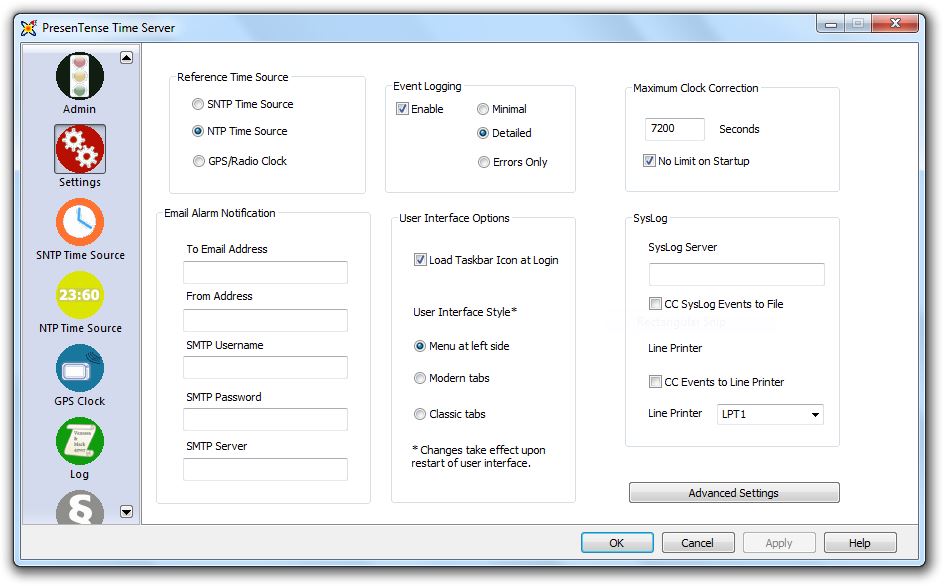
Reference Time Source
This option allows you to specify how PresenTense Time Server obtains accurate time. Possible options are :
a) SNTP Time Source : Obtain accurate time from another time server on your local area network or the public internet from servers supporting common time protocols. Selecting this option will enable the SNTP Time Source tab .
b) NTP Time Source : Use the free NTP4 plug-in DLL. The NTP4 plug-in is shipped with all versions of PresenTense Time Server and supports NTP network time servers. This will activate the NTP Time Source tab. See NTP4 Plug-In.
c) Local GPS Clock : Using the NTP4 plug-in DLL. The NTP4 plug-in is shipped with all versions of PresenTense Time Server and supports many GPS clocks. An option to use the local bios clock is also provided. See GPS Clock.
Email Alarm Notification
If you wish to be notified via email if PresenTense Time Server is unable to contact the time source, set the parameters as follows:
To E-Mail address - the email address to which the messages should be sent.
From Address - the email address for sending the messages.
SMTP User Name - user name if SMTP Auth is required. On many servers, this is your email address.
SMTP Password - password for the above user name.
SMTP Server - IP address, NetBIOS or DNS name of the mail server.
Event Logging
Use this option to enable/disable event logging. PresenTense Time Server is a true system service and as such will log events to the Windows Application Event Log.
Detailed Logging should only be used for problem solving and Errors Only should be used with caution as literally only errors will be logged. No other messages which show that PresenTense Time Server is operating will be shown. Recommended setting is Minimal.
User Interface Options
Show taskbar at login : Activate system tray icon when logging on
User Interface Style : Choose between the different styles of user interfaces. Note that the user interface will need to be restarted to effect the changes.
Maximum Clock Correction
This option limits the number of seconds by which PresenTense Server will adjust its own system clock. This prevents serious time server errors from propagating across the network. It is recommended to override this option for initial clock adjustment to allow PresenTense to make adjustments as necessary on system startup.
SysLog and Line Printer
SysLog server : IP address or DNS name of sys log server to receive event log messages
CC SysLog Messages to File : Send SysLog messages to ptsvr.log
CC SysLog to Line Printer : Send SysLog message to specified line printer
Line Printer : Specifies line printer - requires actual parallel port line printer
Advanced Settings
The advanced settings comprise the following sub-options :
Excluded interfaces : Control which interfaces are bound to when the service starts
Advanced logging: Some of the engines support advanced logging and it can be turned on here
COM port retry: If the COM port is not available when the service starts, it can be polled at configurable intervals. This setting also controls how the service behaves when a USB disconnect message is received.
Special options
Serve local time instead of UTC/GMT
Serve the local time (corrected for offset from UTC/GMT and DST if applicable).
Local Clock Stratum
Fudging the local clock stratum can be necessary if you are using the undiscipined local BIOS clock as a true time source. Many devices will not accept a time server which has a stratum which is too high.
Raise Service Priority
On a busy server which has many processes running, PresenTense Time Server's priority can be raised give better performance and accuracy.
No Default NTP Server
By default if you choose NTP Time Source or GPS Clock without setting a Fallback, PresenTense Time Server will enter a default server for you. Sometimes this is not desirable and can cause alarm messages when operated behind a firewall. Choose this option to stop a default server being entered.
Update CMOS clock every
The CMOS/BIOS clocks on many motherboards can drift while Windows is in operating. This causes a problem when the operating system is rebooted as it uses the drifted time until synchronization is achieved. To minimize the drift, PresenTense Time Server can update the CMOS/BIOS clock at regular intervals.
See Advanced Settings for more information on how to configure these options.
NOTE : Making configuration changes through the user interface requires administrator privileges.