- Overview
- Configuration
- Technical
-
RFC 1305
- 1. Introduction
- 1.1 Related Technology
- 2. System Architecture
- 2.1 Implementation Model
- 2.2 Network Configurations
- 3. Network Time Protocol
- 3.1 Data Formats
- 3.2 State Variables and Parameters
- 3.3 Modes of Operation
- 3.4 Event Processing
- 3.4.1 Notation Conventions
- 3.4.2 Transmit Procedure
- 3.4.3 Receive Procedure
- 3.4.4 Packet Procedure
- 3.4.5 Clock-Update Procedure
- 3.4.6 Primary-Clock Procedure
- 3.4.7 Initialization Procedures
- 3.4.7.1 Initialization Procedure
- 3.4.7.2 Initialization-Instantiation Procedure
- 3.4.7.3 Receive-Instantiation Procedure
- 3.4.7.4 Primary Clock-Instantiation Procedure
- 3.4.8 Clear Procedure
- 3.4.9 Poll-Update Procedure
- 3.5 Synchronization Distance Procedure
- 3.6 Access Control Issues
- 4. Filtering and Selection Algorithms
- 4.1 Clock-Filter Procedure
- 4.2 Clock-Selection Procedure
- 4.2.1 Intersection Algorithm
- 4.2.2. Clustering Algorithm
- 5. Local Clocks
- 5.1 Fuzzball Implementation
- 5.2 Gradual Phase Adjustments
- 5.3 Step Phase Adjustments
- 5.4 Implementation Issues
- 6. Acknowledgments
- 7. References
- Appendix A
- Appendix B
- Appendix C
- Appendix D
- Appendix E
- Appendix F
- Appendix G
- Appendix H
- Appendix I
- About
- Time Tools
| Previous Top Next |
Windows Time Client
Settings Tab
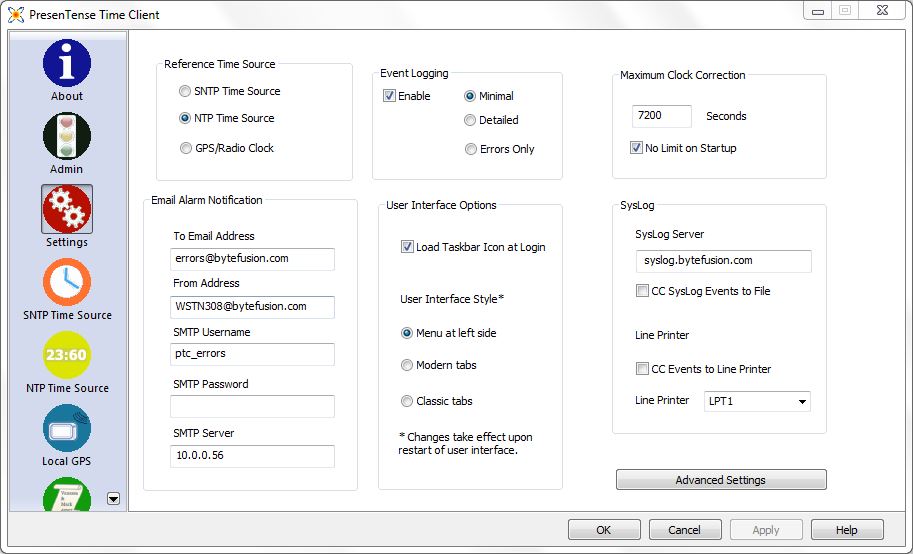
Reference Time Source
This option allows you to specify how PresenTense Time Client obtains accurate time. Possible options are :
a) SNTP Time Source: Obtain accurate time from a time server or GPS master clock on your local area network or the public internet from servers supporting common time protocols. Selecting this option will enable the SNTP Time Source Tab.
b) NTP Time Source : If present, use optional NTP4 plug-in DLL. See NTP Time Source
c) GPS / Radio Clock : Obtain accurate time from a Global Positioning System receiver. Any GPS unit is supported that transmits NMEA 0183 protocol data via an RS-232 link (serial port) and emits NMEA. Special algorithms permit obtaining accurate time from low cost, hand held GPS receivers. Selecting this option will enable the Local GPS Tab.
Alarm Notification
If you wish to be notified via email if PresenTense Time Client is unable to contact the time source, set the parameters as follows:
To E-Mail address - the email address to which the messages should be sent.
From Address - the email address for sending the messages.
SMTP User Name - user name if SMTP Auth is required. On many servers, this is your email address.
SMTP Password - password for the above user name.
SMTP Server - IP address, NetBIOS or DNS name of the mail server.
NTLM, LOGIN, PLAIN, NONE and CRAM-MD5 AUTH methods are supported.
Event Logging
Use this option to enable/disable event logging to the Windows Application Event Log and to specify what message types qualify for logging.
NOTE: Setting the log level to Errors Only will result in almost no entries in the Event Log. This does not mean that PresenTense Time Client is not working.
SysLog
SysLog server : IP address or DNS name of sys log server to receive event log messages
CC SysLog Messages to File : Send SysLog messages to ptsvr.log
CC SysLog to Line Printer : Send SysLog message to specified line printer
Line Printer : Specifies line printer - requires actual parallel port line printer
Maximum Clock Correction
This option limits the number of seconds by which PresenTense Time Client will adjust the Windows system clock. This prevents serious time server errors from propagating across the network. It is recommended to override this option for initial clock adjustment to allow PresenTense Time Client to make adjustments as necessary on system startup.
User Interface Options
Show taskbar at login : Activate system tray icon when logging on
User Interface Style : Choose between the different styles of user interfaces. Note that the user interface will need to be restarted to effect the changes.
Advanced Settings
The advanced settings comprise the following sub-options :
Configure this client via DHCP : PresenTense Time Client can load all configuration options via DHCP on startup.
Create DHCP Cloning Parameters : Once you've configured one client, click this button to get the DHCP Cloning parameters. See Configuring via DHCP for more information.
Auto Detect / Manual Configuration : Auto or manual detection of the necessary settings for the Windows Time Service.
Raise Service Priority : On a busy server which has many processes running, PresenTense Time Server's priority can be raised give better performance and accuracy.
No Default NTP Server : By default if you choose NTP Time Source or GPS Clock without setting a Fallback, PresenTense Time Server will enter a default server for you. Sometimes this is not desirable and can cause alarm messages when operated behind a firewall. Choose this option to stop a default server being entered.
Alternate NTP Port : Port 123 is normally used by PresenTense Time Client however sometimes this is not desirable. Any free port can be used however a port above 5000 is recommended.
Use Alternate NTP Port : Configures PresenTense Time Client to use the alternate port number configured above.
Update CMOS clock every : The CMOS/BIOS clocks on many motherboards can drift while Windows is in operating. This causes a problem when the operating system is rebooted as it uses the drifted time until synchronization is achieved. To minimize the drift, PresenTense Time Server can update the CMOS/BIOS clock at regular intervals.
See Advanced Settings for more information on how to configure these options.
NOTE : Making configuration changes through the control panel applet requires administrator privileges.